

How to Check Your GeoExpress Data Cartridge Balance
How to find out the cartridge balance
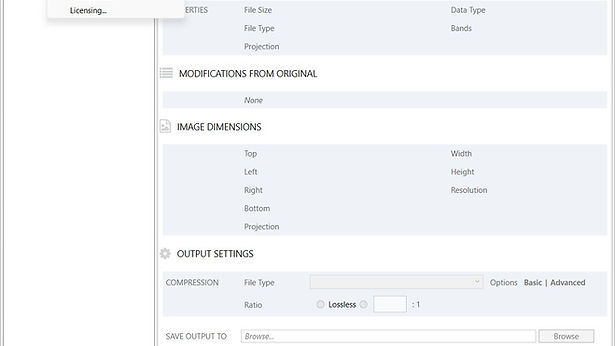
To check the remaining balance on your GeoExpress data cartridge, use one of these methods depending on your GeoExpress version:
GeoExpress 9.5 / 10.x
Open GeoExpress.
Go to Options → Licensing.
In the Cartridges section, you'll see the cartridge information.
The bottom of the panel displays how much data remains on the cartridge.
GeoExpress 9.1 – 9.5
Open GeoExpress.
Go to Tools → Data Cartridge.
Open the Data Cartridge Manager (ECM).
The manager contains Configuration, Administration, and History tabs where cartridge usage and status can be viewed.
Express Cartridge Manager (ECM) Directly
You can also view cartridge information from Windows:
Start Menu → LizardTech → Express Cartridge Manager → Cartridge Manager Info
The utility displays cartridge details and remaining units.
Command Line
If you have the GeoExpress command-line tools installed, run:
geoexpress -ecmid
This displays the ECM ID and available data cartridge units.
For the latest version 10.0.1
For GeoExpress 10.0.1, the remaining cartridge balance is displayed directly in the Licensing dialog:
Open GeoExpress 10.0.1
Select Options → Licensing
In the Cartridges section, look at the bottom of the panel
It will show the remaining data units on the active cartridge.
If you want to check the cartridge outside GeoExpress:
Open Start Menu → LizardTech → Express Cartridge Manager → Cartridge Manager Info
The utility displays the ECM ID and cartridge information.
From the command line, you can also run:
geoexpress -ecmid
This displays the Express Cartridge Manager ID and available data cartridge units.
GeoExpress